
Spectra Laser Remote App and the LL1505C: The Complete Walkthrough
Posted by Contractors-Tools.com on 28th Sep 2026
Your LL1505C has Bluetooth built into it, and almost nobody uses it. The free Spectra Precision Laser Remote app turns your phone into a full remote control for the laser — rotation speed, slope modes, mask mode, HI alert, sensitivity, calibration, even the laser’s own hour meter. Most of that is not in the box, not on the spec sheet, and not on any page you will find searching for it.
This is the whole app, screen by screen, on an actual LL1505C. Where Spectra write something in the app we quote them word for word. Where the app shows you something this laser cannot do — and it does — we say so plainly, because that is the thing that generates the phone call.
Getting Connected
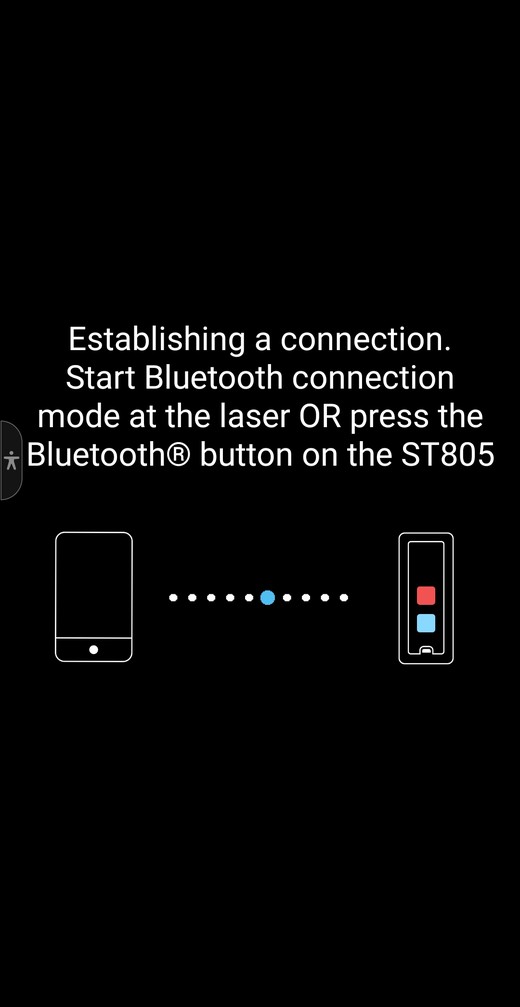
There is a thirty second window and most people miss it. From Spectra’s user guide: “When powering the LL1505C, it is in connectivity mode for the first thirty seconds. During this time start the Laser Remote App.”
Every Button on the Home Screen
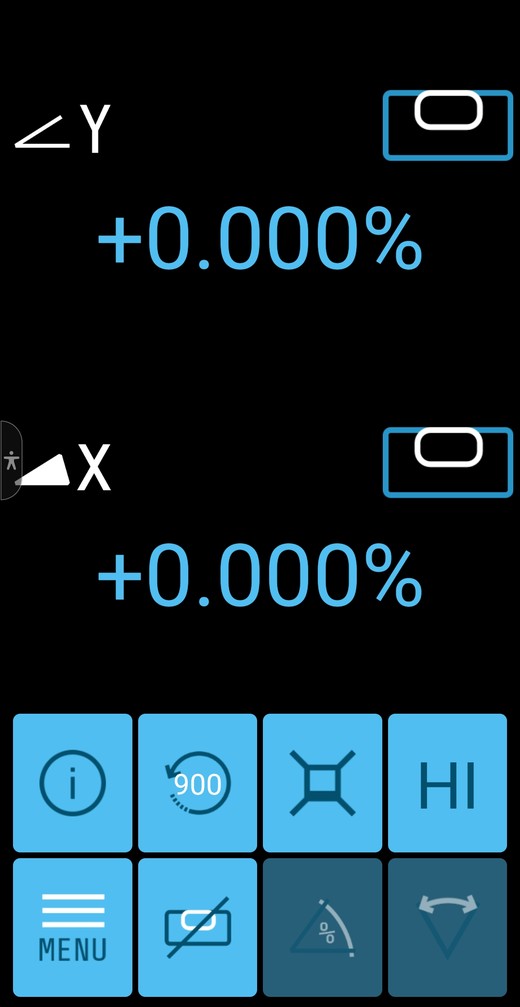
The app opens on a live two-axis display with eight tiles underneath. Six work on your LL1505C and two are greyed out. Here is what each one does.
| Tile | Where | What it does |
|---|---|---|
| ⓘ info | Top row, 1st | Opens About Laser — model, battery, live internal temperature and firmware revisions. |
| 900 | Top row, 2nd | Rotation speed. 300, 600 or 900 rpm. |
| Mask icon | Top row, 3rd | Mask Mode. Shuts the beam off in up to three of four directions. |
| HI | Top row, 4th | HI alert delay — 30 seconds, 5 minutes, or OFF. |
| MENU | Bottom row, 1st | The six-card menu: Plane Match, Standby, Settings, User Manual, Info, Service. |
| Bubble vial | Bottom row, 2nd | The slope mode carousel: Manual, Single Axis Slope Y, Automatic. |
| △% greyed | Bottom row, 3rd | Slope percentage entry. Disabled — this laser has no automatic slope. |
| ↔∨ greyed | Bottom row, 4th | Also disabled on the LL1505C. |
The Percentage On Screen Is Not a Grade You Can Set
The app opens showing ∠Y +0.000% and ◢X +0.000%. Every instinct says type a number in there and the laser will hold that grade. It will not. The LL1505C has no automatic slope, and the app tells you so the moment you try.
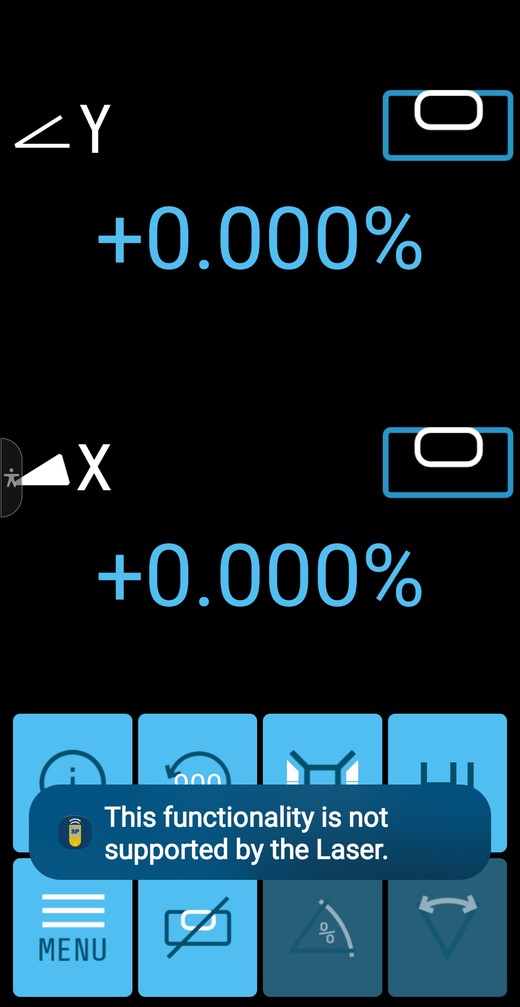
Why does it show a percentage at all? Because one app runs Spectra’s entire laser range, including models that do have automatic slope. On those the readout is a control. On yours it is a readout only — it tells you what the plane is currently doing, which is genuinely useful, but it is not an input.
Spectra got half of this right. The percentage-entry tile is correctly greyed out on the home screen. It is the attempt itself that produces the error.
If you genuinely need to dial in 1.5% and have the laser hold it, you need an automatic slope laser, not this one. Call 1-877-866-5721 before you order and we will tell you straight.
The Three Slope Modes
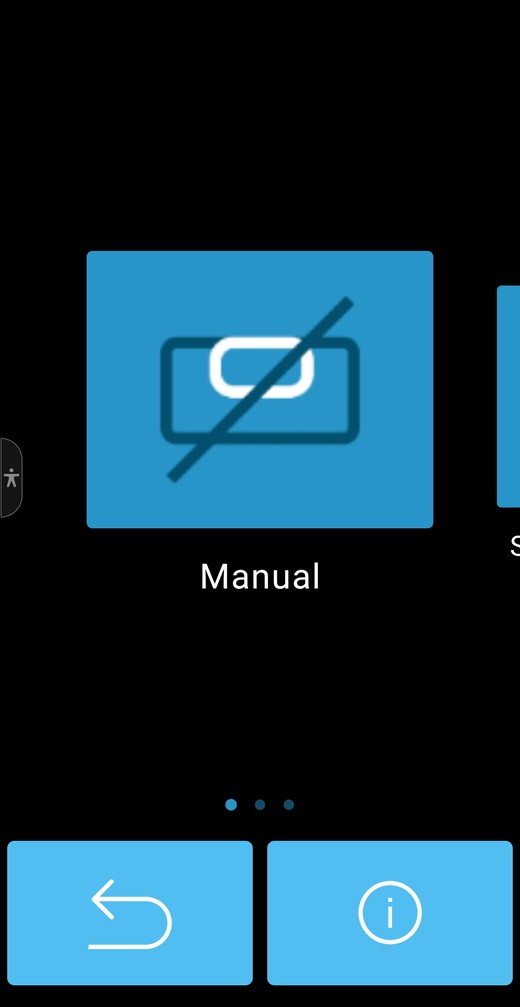
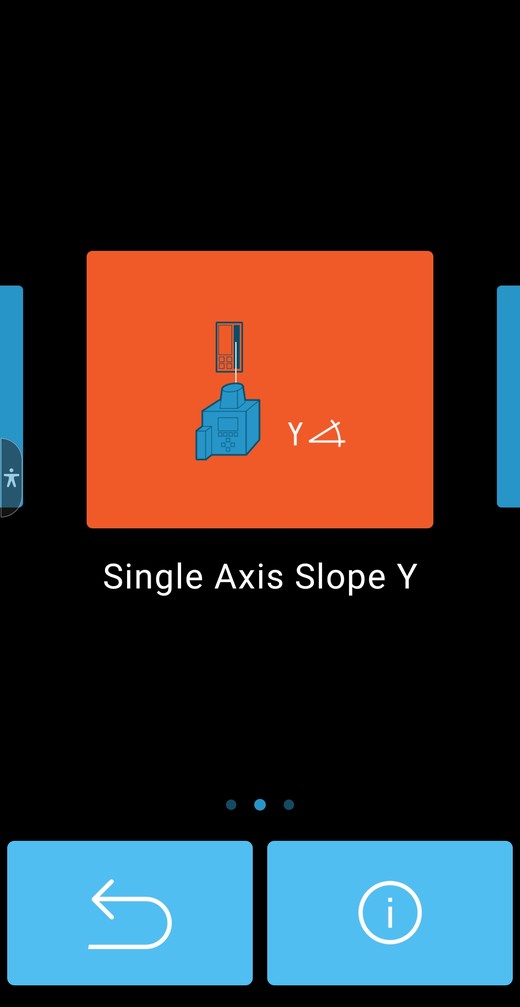
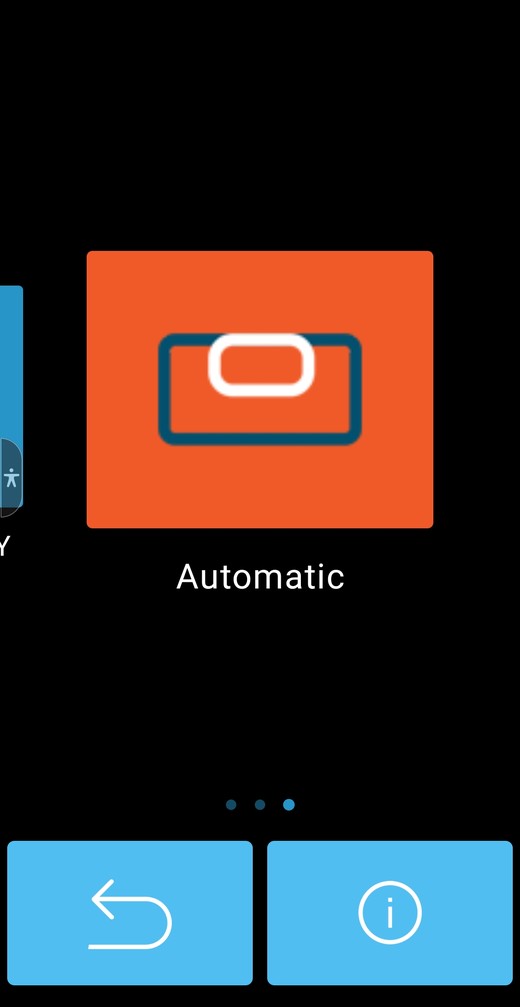
Tap the bubble-vial tile (bottom row, second) and you get a carousel of three cards. All three work on the LL1505C. The one that is selected shows orange.
The table that actually matters
Every axis you take manual control of, you also take responsibility for. This is the whole thing in one table:
| Mode | Y axis | X axis | What is watching you |
|---|---|---|---|
| Automatic | self-levels | self-levels | Both axes. HI alert armed. |
| Single Axis Slope Y | you tilt it | self-levels | X only. Y is unwatched. |
| Manual | you tilt it | you tilt it | Nothing. No HI alert. |
Spectra’s own warning on Manual mode
Every card in the app has an ⓘ button. Tap it on Manual and this is what the manufacturer tells you, word for word:
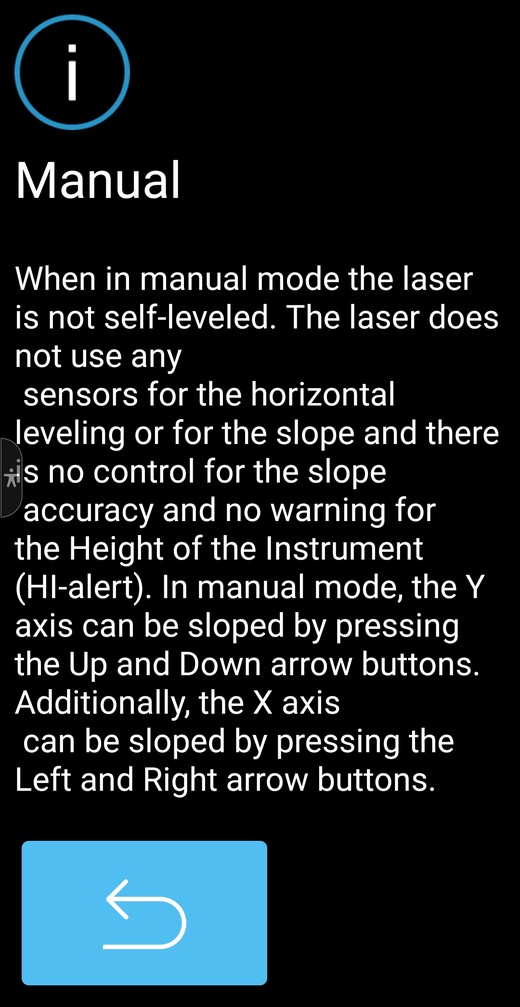
“When in manual mode the laser is not self-leveled. The laser does not use any sensors for the horizontal leveling or for the slope and there is no control for the slope accuracy and no warning for the Height of the Instrument (HI-alert). In manual mode, the Y axis can be sloped by pressing the Up and Down arrow buttons. Additionally, the X axis can be sloped by pressing the Left and Right arrow buttons.”
And on Single Axis Slope
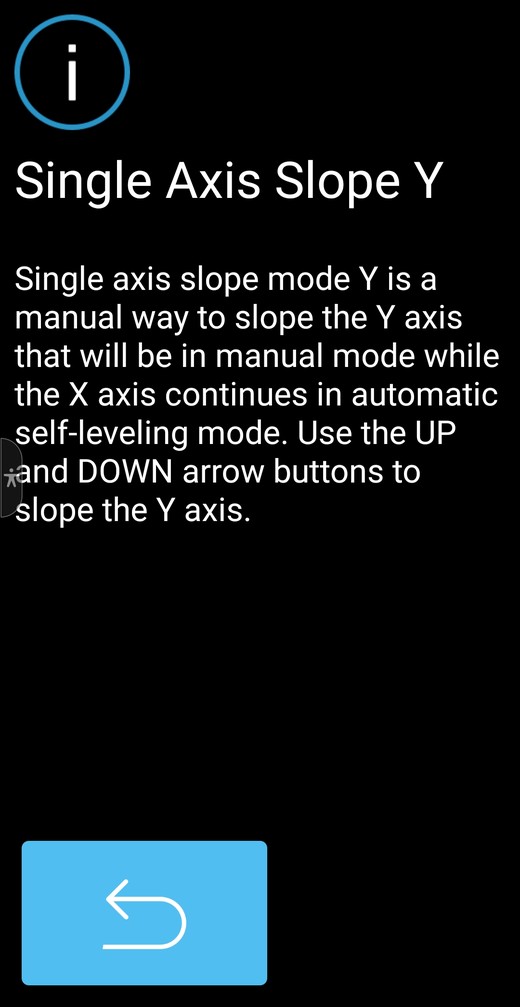
“Single axis slope mode Y is a manual way to slope the Y axis that will be in manual mode while the X axis continues in automatic self-leveling mode. Use the UP and DOWN arrow buttons to slope the Y axis.”
That is the argument for single-axis over manual on a drive or a ramp, written by the manufacturer without meaning to. Give up one axis, keep the guard on the other.
Running a Grade: Single Axis Slope
This is the mode for a driveway, a ramp, a patio fall, a parking bay — anywhere you want fall in one direction and dead level across it. You can do the whole thing from the phone, or from the buttons on the laser. Both routes are here.
From the laser: press the manual button twice. The red and green LEDs then flash together, once a second — that is single-axis slope.
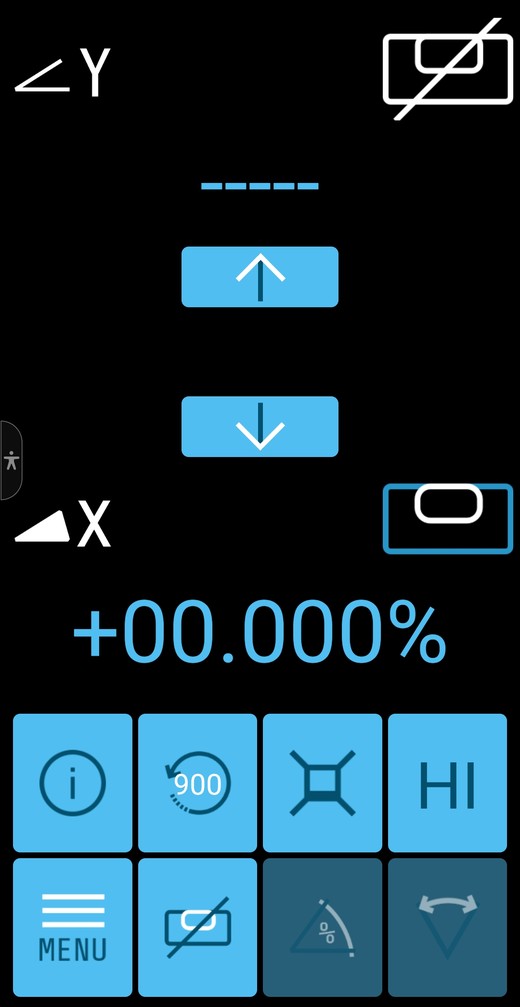
Manual Mode: Both Axes
Use this when you need to match two existing elevations that fall in both directions, or align to hubs that were never level to begin with. Nothing is monitoring anything.
How Far Do You Drop the Receiver?
Setting a grade by hand means moving the receiver down the rod by the fall over your distance, then tilting the beam until it reads on grade again. The formula is simple:
Example slope chart
Drop the receiver by this much:
| SLOPE | 25 ft | 50 ft | 75 ft | 100 ft | 150 ft | 200 ft |
|---|---|---|---|---|---|---|
| 0.5% | 1.5″ | 3″ | 4.5″ | 6″ | 9″ | 12″ |
| 1% | 3″ | 6″ | 9″ | 12″ | 18″ | 24″ |
| 1.5% | 4.5″ | 9″ | 13.5″ | 18″ | 27″ | 36″ |
| 2% | 6″ | 12″ | 18″ | 24″ | 36″ | 48″ |
| 3% | 9″ | 18″ | 27″ | 36″ | 54″ | 72″ |
So a 100 ft driveway at 2% falls 24 inches — two feet. Drop the receiver two feet down the rod, walk to the far end, and tilt the beam with the arrows until it reads on grade. Your fall is set.
Or put your own numbers in
Works on this page with no app and no signal. The chart above is the same arithmetic if you would rather read it off.
Rotation Speed, HI Alert, Mask and Info
Rotation speed — 300, 600 or 900 rpm
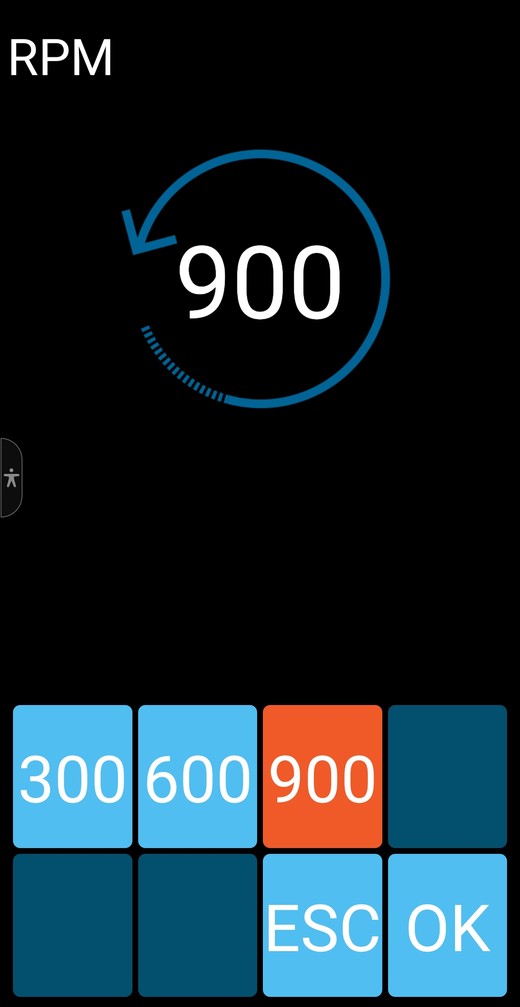
Faster rotation does not make the laser more accurate. The plane is the same plane. What changes is how often your receiver hears from it — the receiver only knows where the beam is when the beam sweeps past.
| Speed | Sweeps past the receiver | Best for |
|---|---|---|
| 300 rpm | 5 times a second | Standing on a rod. You are not moving; this is plenty. |
| 600 rpm | 10 times a second | General use. |
| 900 rpm | 15 times a second | Machine-mounted receivers. On a moving blade you learn you have drifted sooner and chase grade less. |
The practical value of doing it from the app: you change it from the cab or from the ground, without walking back to the laser and climbing off the machine.
HI alert — and what that flashing LED actually means
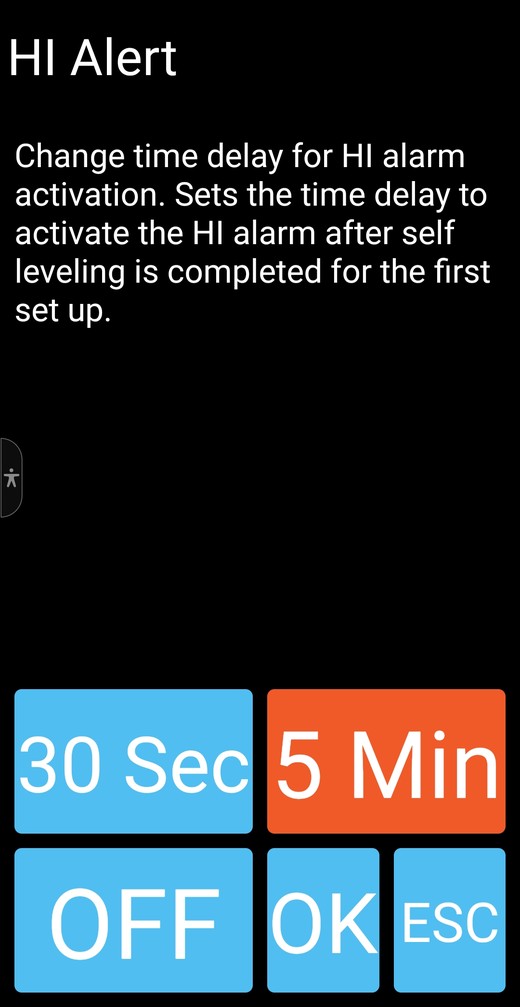
HI alert is what tells you the tripod moved. A change of about 1/8 inch at the tripod triggers it: the rotation stops and the beam shuts off, so you cannot keep working off a plane that has moved.
It does not arm instantly, because during setup you are moving the laser about and it would alarm constantly. This setting is how long it waits. And that explains something no one publishes:
| Status LED | What it means |
|---|---|
| Solid | Levelled, but the HI delay is still counting down. Not yet guarding you. |
| Flashing every 4 seconds | Levelled and HI is armed and watching. |
Mask mode — shut the beam off in one direction
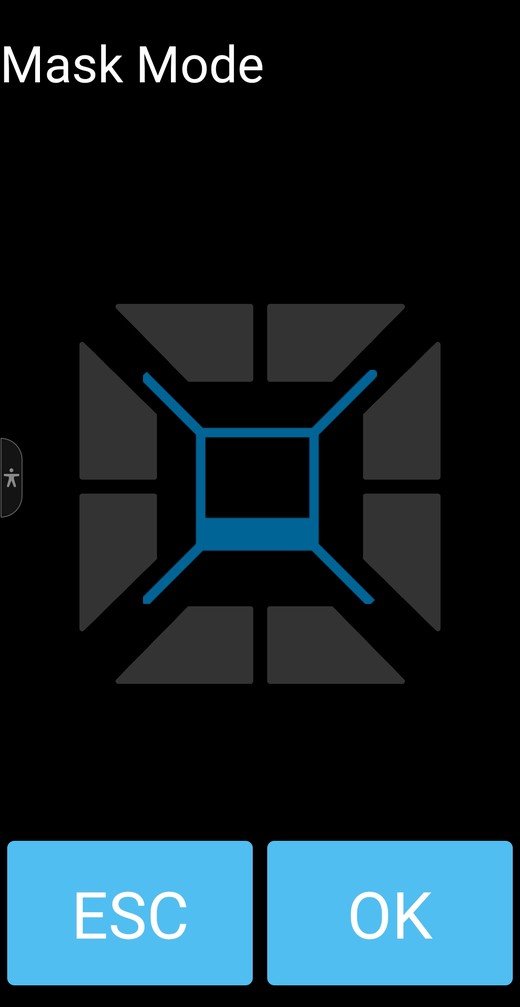
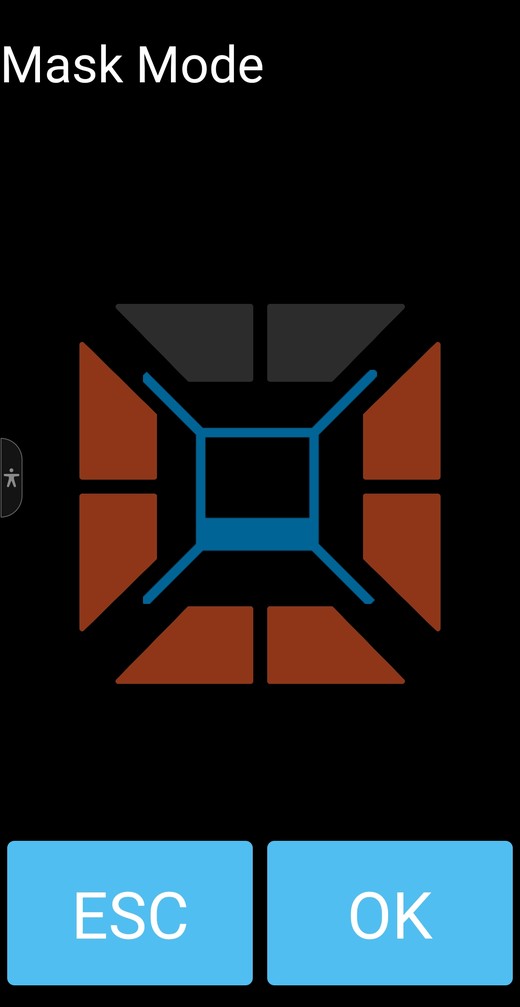
The laser is drawn in the centre with its four sides split into segments. Orange segments are masked — beam off in that direction. You can mask one, two or three of the four sides, never all four.
This is the feature that lets you keep working next to traffic or the public. A rotating beam sweeping an intersection at driver eye height is a problem. So is blinding the crew next door, or interfering with somebody operating equipment. The alternatives — switch off, move the laser, re-site it — all cost you your height of instrument and a re-check. Masking kills the beam in the direction you do not want it and leaves your grade exactly where it was.
There is a second reason, and it is the expensive one: your own beam bouncing off glass or glossy metal and coming back into your receiver as a false on-grade reading. Nothing warns you that is happening. Mask the reflective side and it stops.
Masking always clears when you power the laser off, so yesterday’s mask never follows you to today’s job.
The Six Cards Behind the Menu Button
1. Plane Match — the laser finds your grade for you
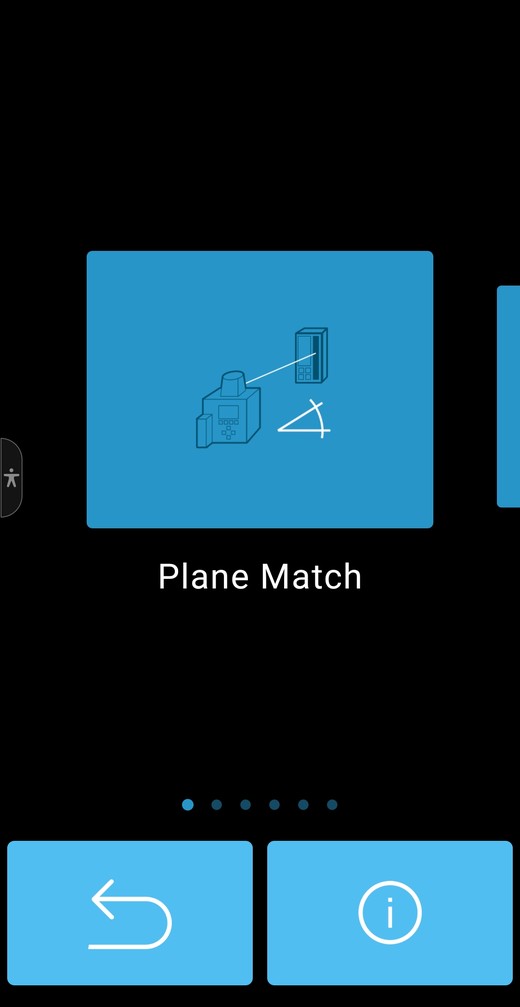
Put the receiver where you want the plane to land, and the laser hunts until it finds it. No distance measured, no percentage calculated, no arithmetic. It scans, locates the receiver at whatever elevation you have set it, and tilts to match.
Spectra rate it to about 260 ft (80 m). It finishes in Single Axis Slope mode — which tells you what it really is: automatic single-axis slope. It only works on the Y axis, because Y is the slope axis and X always self-levels.
Kits that can do PlaneMatch: LL1505C, -A, -14, -14A, -16, -17, -18S, -19S, -21, -26, -26A, -27, -27A, -28S, -29S.
Kits that cannot: LL1505C-1, -1A, -2, -2A, -4, -8, -81, -82, -X1, -X2, -X2A, -BL, -BCC.
2. Standby — the one that saves your setup
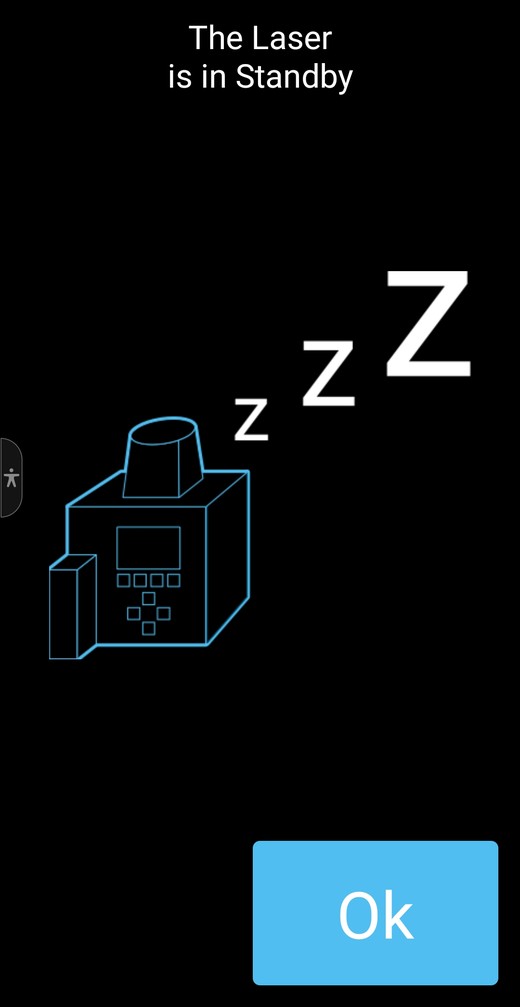
Beam off, head stopped, batteries saved — and the HI alert still watching. From twenty feet away standby looks identical to a dead laser. The app is what tells you which it is.
The honest case for standby over switching off: switching off costs you your height of instrument. Standby does not. Come back from lunch, glance at the phone, setup intact, and HI never stopped watching. The laser switches itself off after 8 hours in standby, or when the batteries go.
3. Settings
Three cards: Backlight Timeout, Sensitivity and Share Logs.
Backlight Timeout (8 or 60 seconds) sets how long the RC1402 remote’s screen stays lit. Your laser has no screen, so if you do not own an RC1402 this one does nothing for you. It is a timeout, not a brightness.
Sensitivity — and the naming trap
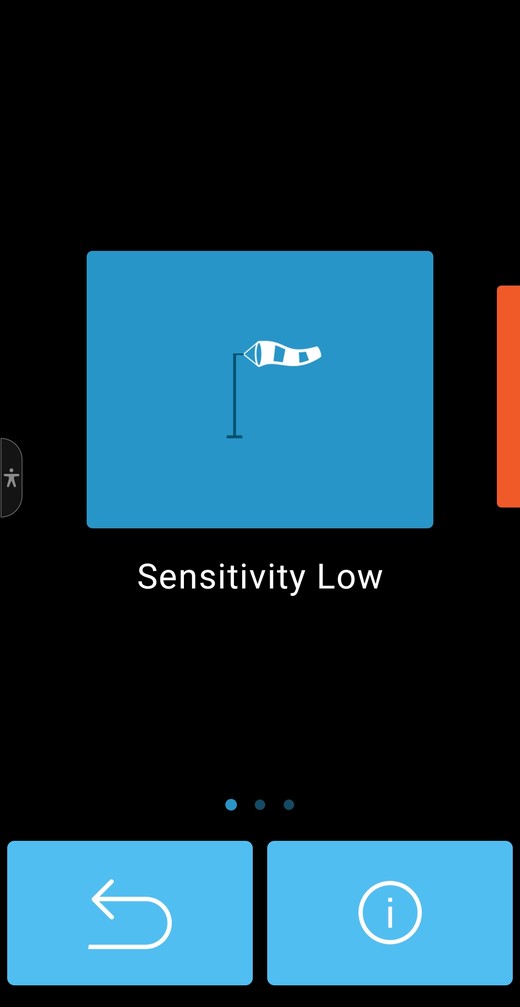
Low — windy, or beside a running machine or traffic. Mid — ordinary day. High — dead calm.
The rule: set it LOW when conditions are rough. You stop the nuisance alarms and you give up nothing on accuracy. This is the setting to reach for instead of turning HI alert off.
Share Logs — nobody writes about this one
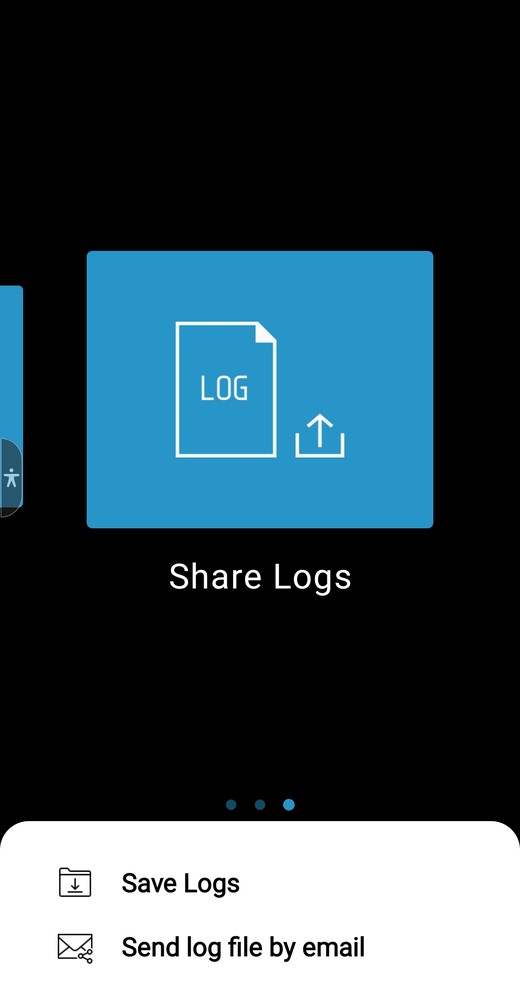
It exports the laser’s own diagnostic log — save it to the phone, or email it. It is in no Spectra document: not the user guide, not the datasheet, not the training deck.
4. User Manual — the whole thing, in your pocket
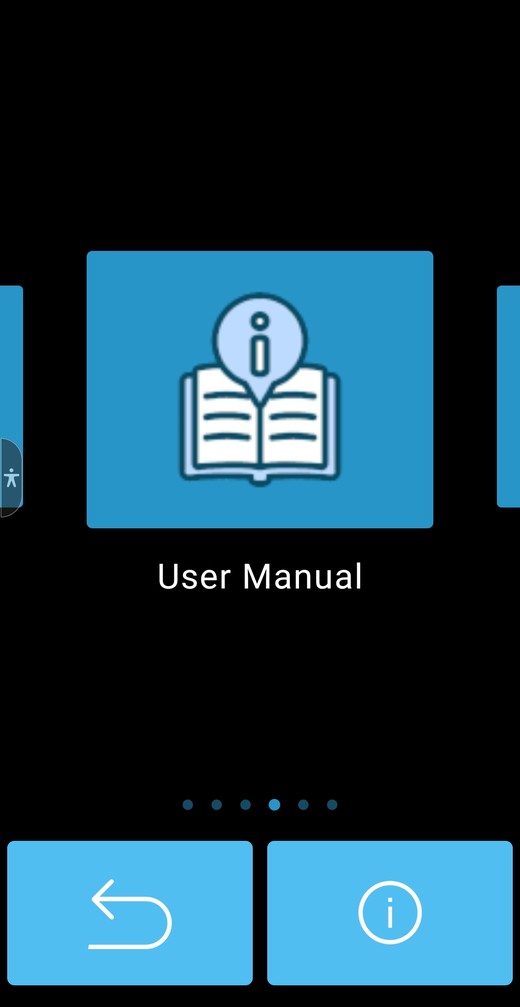
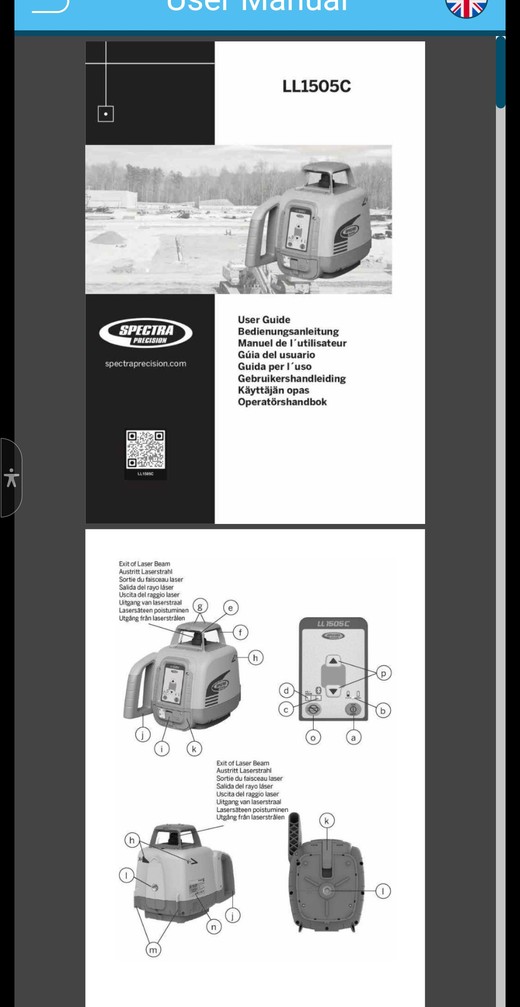
Tap it and the genuine LL1505C User Guide opens — cover page, lettered component diagram, the lot. There is a flag icon top right, so you can change its language too.
The paper manual lives in the case, or the truck, or it was lost in year one. Standing on a pad at four in the afternoon trying to remember what a flashing red LED means is exactly when you need it, and exactly when the paper copy is not there.
5. Info — About Laser, About App, and the hour meter
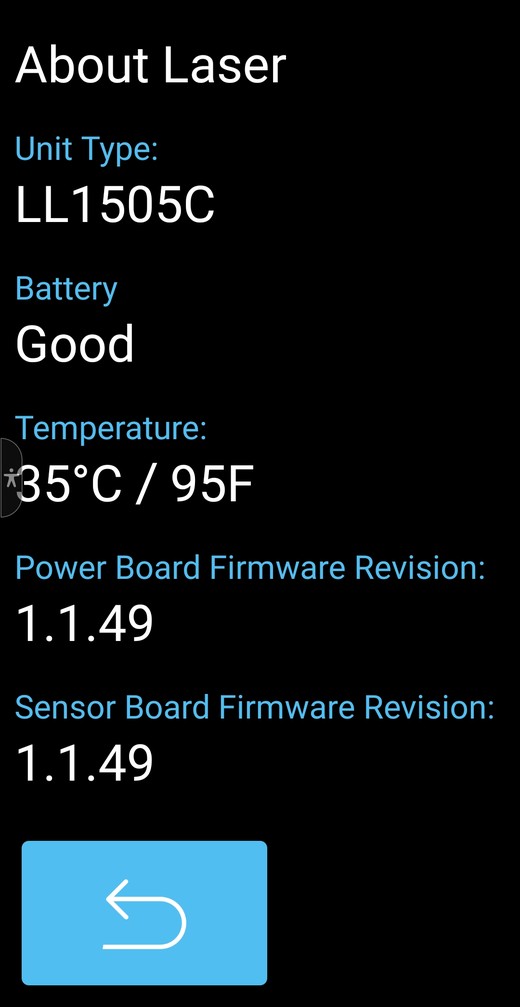
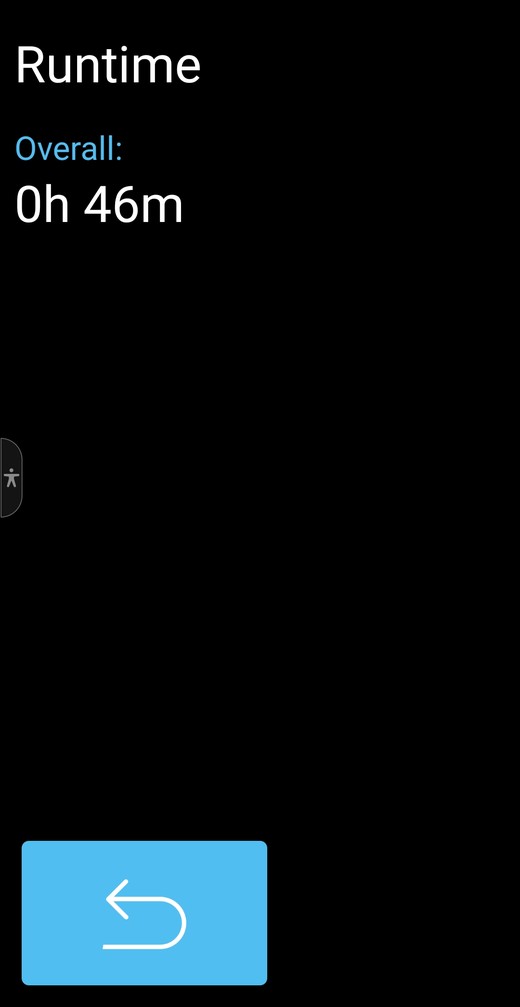
About Laser gives you unit type, battery condition, live internal temperature and the firmware revisions. The temperature is a real sensor reading, not a rating — it changes through the day.
6. Service — yes, you can calibrate it yourself
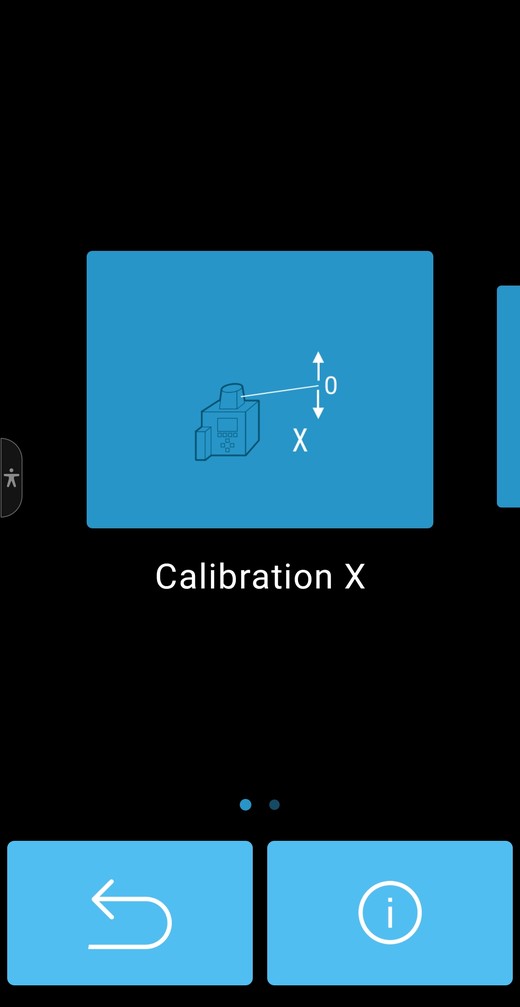
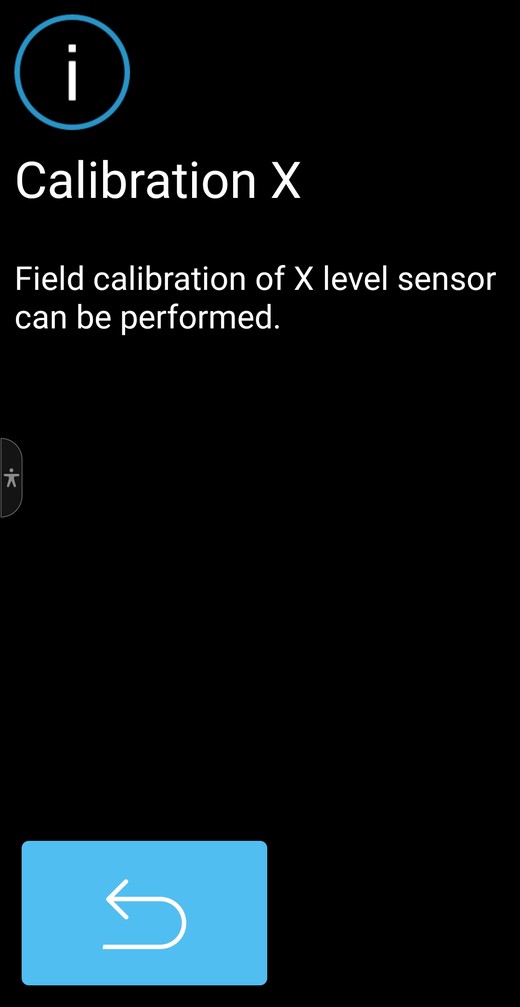
Two cards, Calibration X and Calibration Y, each calibrating that axis’ level sensor independently. Spectra’s own info text reads: “Field calibration of X level sensor can be performed.”
This is not a hidden engineer feature. It is a responsibility Spectra hands you in the warranty document itself: “calibration is not covered by this warranty. Maintenance of the calibration is the responsibility of the user.”
Dropped your laser and want to know if it is still accurate? Check it. If it is out, correct it. If you are not sure, call us.
Do You Still Need the RC1402 Remote?
Spectra’s own user guide says the settings menu requires the RC1402, and lists Info as remote-only. Both are out of date. The app has grown past the manual. Here is what each actually does today:
| Capability | App | RC1402 |
|---|---|---|
| Slope modes | Yes | Yes |
| Rotation speed | Yes | Yes |
| HI alert delay | Yes | Yes |
| Mask mode | Yes | Yes |
| Standby | Yes | Yes |
| PlaneMatch | Yes | Yes |
| Sensitivity | Yes | Yes |
| About Laser, firmware, temperature | Yes | Yes |
| Runtime hours | Yes | Yes |
| Calibration X and Y | Yes | Yes |
| Share Logs | Yes | not documented |
| Radio channel | No | Yes |
| Language | No | Yes |
2. It works with no phone at all. Flat battery, heavy gloves, phone in the truck, phone you would rather not have out in the rain and the dust. The remote does not care.
That is a genuine case. It is a much smaller one than the spec sheet implies, and we would rather tell you that than sell you one you do not need.
Which LL1505C Kit Should You Buy?
Every LL1505C has the Bluetooth and the app. Every single kit on this list does everything on this page. What changes between them is the receiver, the rod scale and the case — and whether you get PlaneMatch.
| Kit | Receiver | Rod and tripod | PlaneMatch |
|---|---|---|---|
| LL1505C | HL760 digital readout | None — small case | Yes |
| LL1505C-27 | HL760 digital readout | GR152 inches, Q104025, system case | Yes |
| LL1505C-17 | HL760 digital readout | GR151 tenths, Q104025, system case | Yes |
| LL1505C-26 | CR700 — rod or machine | GR152 inches, Q104025, system case | Yes |
| LL1505C-1 | HL450 tone only | GR151 tenths, Q104025, system case | No radio |
| LL1505C-2 | HL450 tone only | GR152 inches, Q104025, system case | No radio |
Not sure which? Call 1-877-866-5721. We use these, we build these kits ourselves, and we would rather spend ten minutes on the phone than process a return.
Questions We Actually Get
Do I need the RC1402 remote to use the Spectra Laser Remote app?
No. The LL1505C has Bluetooth built in, so the app connects straight to the laser. The RC1402 is only needed for radio channel and language, plus its predictable 330 ft radio range and the fact that it works when you have no phone.
Why does the app show a percentage I cannot change?
One app runs Spectra’s whole laser range, including models with automatic slope. On the LL1505C the percentage is a readout only. If you try to set a slope percentage the app answers that the functionality is not supported by the laser.
How do I set a grade on an LL1505C?
Use single axis slope or manual mode and tilt the beam with the arrow buttons, checking it on the rod. Move the receiver down the rod by distance in feet times slope percent times 0.12 inches, then tilt until it reads on grade. If you own an HL760 or CR700 you can let PlaneMatch find the grade for you instead.
What is the difference between manual mode and single axis slope?
In single axis slope the Y axis comes under your arrow buttons and the X axis keeps self-leveling, so one axis is still being watched. In manual mode you take both axes and nothing is watching either one, including the HI alert. Single axis slope is the right mode for a drive or a ramp.
How do I connect the app to my LL1505C?
Power the laser and start the app within thirty seconds. The laser is in Bluetooth connection mode for the first thirty seconds after power-up. When it connects the status LED turns blue. If you miss the window, switch the laser off and on again.
Does changing rotation speed make the laser more accurate?
No. The plane is the same plane at every speed. What changes is how often the beam sweeps past your receiver, which is 5 times a second at 300 rpm, 10 at 600 rpm and 15 at 900 rpm. Faster matters on a moving machine and makes little difference on a rod.
Should I set sensitivity to low or high?
Set it low when conditions are rough. The laser levels to exactly the same accuracy on all three settings. What changes is how much wind and vibration it tolerates before raising an HI alarm, so low is the setting for wind, traffic vibration or working beside a running machine.
Can I calibrate the LL1505C myself?
Yes. The app has Calibration X and Calibration Y under Service, and Spectra state that field calibration of the level sensors can be performed. Their warranty says maintenance of the calibration is the responsibility of the user. Run the accuracy check in section 22 of the user guide first, because a botched calibration is worse than none.
Which LL1505C kits can use PlaneMatch?
PlaneMatch needs a receiver with radio, so it works with the HL760 and the CR700 only. The HL450 and HR320 have no radio and cannot do it.
Can I see how many hours my laser has run?
Yes. Menu, then Info, then Runtime shows the overall hours. It is worth asking for a photograph of that screen before buying a used LL1505C.
Experience the value of Great Customer Service!